Install Kemono-no-Tab on Edge
Kemono-no-tab is published on the Chrome Web Store. Edge can install it with one quick setting.
Allow Extensions From Other Stores
Open Edge and navigate to edge://extensions. Enable "Allow extensions from other stores" when prompted — this lets Edge install extensions from the Chrome Web Store.
Add From the Chrome Web Store
Open the Chrome Web Store listing and click "Add to Chrome". Edge will install it just like a regular extension.
Add From Chrome Web StoreChrome Web Store · free
Pin the Extension
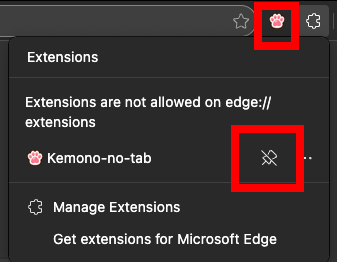
Click the Extensions icon (puzzle piece) in the top-right corner of your browser. Find Kemono-no-tab in the list and click the eye icon to keep it easily accessible in your toolbar.
Login with Google
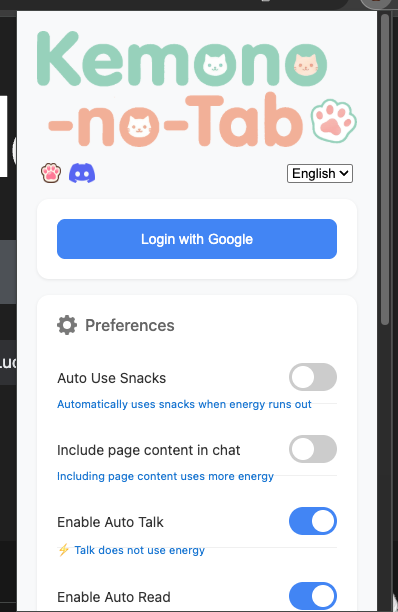
Click on the Kemono-no-tab icon in your browser toolbar to open the popup. Click the "Login with Google" button to sign in and sync your data.
You're All Set!
🎉 Congratulations! Installation is complete. Yukina will now roam around your screen. Enjoy your time together and have fun! 🐾
Important Note
Yukina will only appear on regular web pages. She won't show up on special browser pages such as edge://extensions,edge://settings, or other internal browser pages. Just navigate to any website (like Google, YouTube, etc.) and she'll be there!
Join Our Community!
Have questions, feedback, or just want to chat with other Kemono lovers? Join our Discord server!